Press O, or open the menu (N) and choose Settings. The window has two tabs: Game, with every setting, and Addons.
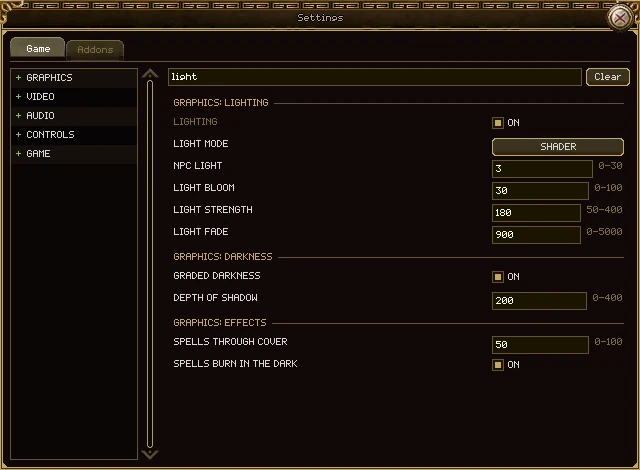
| Part | What it does |
|---|---|
| The list on the left | The five pages: Graphics, Video, Audio, Controls and Game. Click one to open it; its sections appear under it, and clicking a section jumps to it. The section you're reading is lit. |
| Search settings | Type a word and every matching row from every page shows at once, under a heading naming its page and section. Clear empties the box. |
| A row with a tick box | Click to turn it on or off. |
| A row with a button | Click to step to the next choice, right-click to step back. |
| A row with a number | Click the box, type a number and press Enter. The range it takes is written beside it. A number outside it is refused, and the reason shows in orange where the row's name was. |
| A grey row name | That setting takes effect the next time you start the game. |
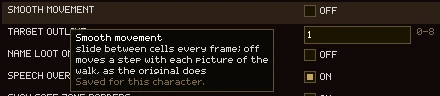
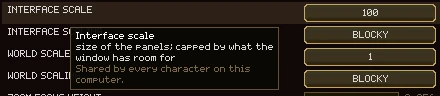
| Hovering over a row's name | Explains the row, and says whether it's saved for this character or shared by the computer. |
Everything else changes the moment you click. There is no Apply or OK button.
Most settings are a matter of taste, so each character keeps its own. A few are facts about the computer, and every character on it shares those.
| Whose | Which rows |
|---|---|
| This character's | Every row that takes effect at once and isn't listed below: outlines, shadows, lighting strength, names on loot, speech over heads, world scale, every volume, positional sound, hints, emoticon shape, what Escape closes, and the rest. |
| The computer's | The whole Video page; every row that needs a restart; Interface scale and Interface scaling (they follow the screen, not the person); Language; Remember email; Connection timeout. |
- Logging in as a character switches to its settings. A setting it has never changed uses the computer's.
- A brand new character starts with the settings, window positions and keys of the last character you played, so you don't set everything up twice.
How the world looks: what is drawn on it, how big it is, its shadows, light and dark, and spells.
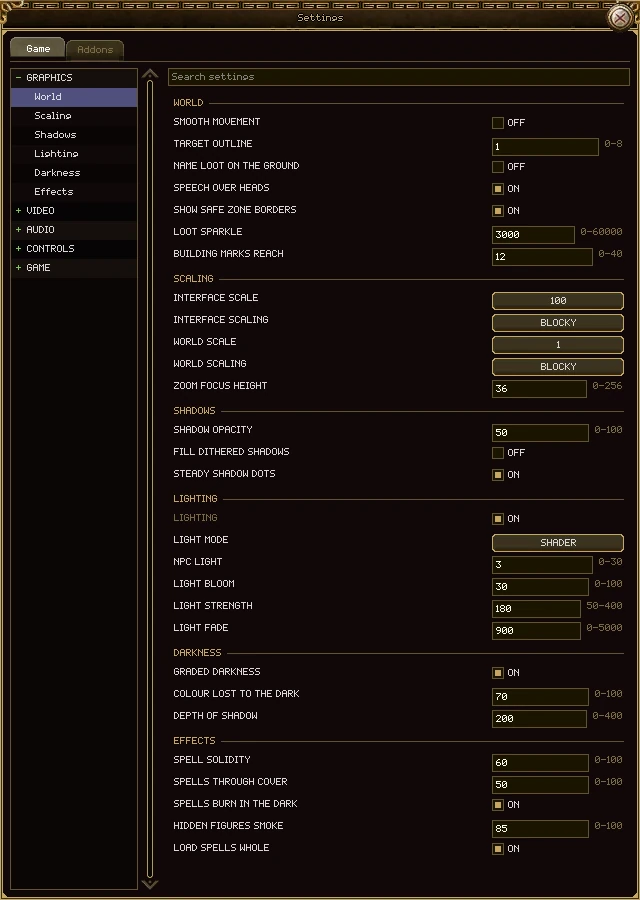
| Row | What it does |
|---|---|
| World | |
| Smooth movement | On: slide between cells every frame. Off: move a step with each picture of the walk, as the original game does. |
| Target outline | How thick the glow round what you're fighting is, 0 to 8. 0 draws none. |
| Name loot on the ground | Name every drop, not only the one under the pointer. |
| Speech over heads | Float what people say over them, as well as in the chat. |
| Show safe zone borders | Glowing posts just outside every town, so you can see where its protection stops. |
| Loot sparkle | How often each piece of loot on the ground twinkles, in milliseconds. 0 turns it off; otherwise 1000 to 60000. |
| Building marks reach | How many cells round the pointer the Build window marks ground a building may not cover. |
| Scaling | |
| Interface scale | Size of the windows and panels: 75, 100, 125, 150, 200, 300 or 400%. Capped by what the game window has room for. |
| Interface scaling | How a scaled interface is drawn: Blocky, Sharp or Smooth. Makes no difference at 100%. Sharp suits 125% and 150%. |
| World scale | How far the world is magnified, 1 to 8 times. Alt and the mouse wheel do it too. |
| World scaling | Blocky, Sharp or Smooth, for a magnified world. |
| Zoom focus height | How far above your feet a magnified view is centred, in pixels. |
| Shadows | |
| Shadow opacity | How dark a shadow is, 0 to 100. |
| Fill dithered shadows | Draw the map's checkerboard shadows as solid shade. |
| Steady shadow dots | Pin the dots of unfilled shadows to the screen, so they don't shimmer as you walk. |
| Lighting | |
| Lighting | Draw light and dark on maps that are dark. Needs a restart. |
| Light mode | Layer (the original way) or Shader (worked out for every pixel). |
| NPC light | How far every NPC's own glow reaches at night, 0 to 30. 0 is none. |
| Light bloom | How much light brightens the scene on top of lighting it, 0 to 100. |
| Light strength | How bright a light is, 50 to 400% of its own reach. |
| Light fade | How long a spell's light lingers after the spell, in milliseconds. |
| Darkness | |
| Graded darkness | The dark takes the colour and the shadows first, and a light shows the real world through it. Off is the original's flat night. |
| Colour lost to the dark | How much colour the unlit world keeps at full dark. Only with graded darkness. |
| Depth of shadow | How much sooner the dark takes the shadows than the highlights. Only with graded darkness. |
| Effects | |
| Spell solidity | How much a spell's bright parts hide what's behind them. 0 is the original, where the world shows straight through a fireball. |
| Spells through cover | How much of a spell's light shows through a tree, a wall or a body in front of it. |
| Spells burn in the dark | Spells that give off light are drawn at full strength at night and in caves. |
| Hidden figures smoke | How much someone hiding dissolves into smoke instead of just fading. |
| Load spells whole | Wait until a spell has loaded every picture before drawing it, rather than letting it flicker in. |
The game window and your graphics card. Every row here belongs to the computer, and most take effect when you next start the game.
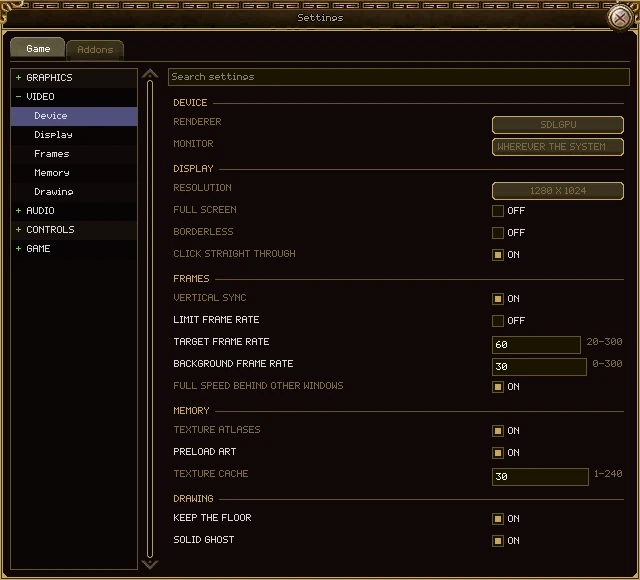
| Row | What it does |
|---|---|
| Device | |
| Renderer | Which graphics system draws the game. There is one today. Restart. |
| Monitor | Which monitor the window opens on. Restart. |
| Display | |
| Resolution | How big the game window is, from the sizes your screen offers. The first time, 1280 × 1024, made smaller to fit a smaller screen. Restart. |
| Full screen | Take the whole screen. Restart. |
| Borderless | A window with no frame. Restart. |
| Click straight through | The click that brings the game to the front also counts, handy when switching between several games. Restart. |
| Frames | |
| Vertical sync | Draw in step with the screen. Restart. |
| Limit frame rate | Cap the frame rate. |
| Target frame rate | Frames a second when capped, 20 to 300. |
| Background frame rate | Frames a second while another window is in front, 0 to 300. 0 draws as often as normal. The game itself keeps running at full speed either way. |
| Full speed behind other windows | Ask the computer not to slow the game down while another window is in front. Restart. |
| Memory | |
| Texture atlases | Draw pictures in batches where the graphics card can. Restart. |
| Preload art | Read a map's tiles and a creature's pictures all at once, rather than as each is first drawn. |
| Texture cache | How many minutes an unused picture is kept in memory, 1 to 240. Restart. |
| Drawing | |
| Keep the floor | Draw the still parts of the map once and keep them. Off draws the same picture the slow way. |
| Solid ghost | Behind a wall, your outline shows through as one figure. Off blends each part separately, as the original did, and costs less. |
How loud each kind of sound is, the music, and how sound is placed around you.
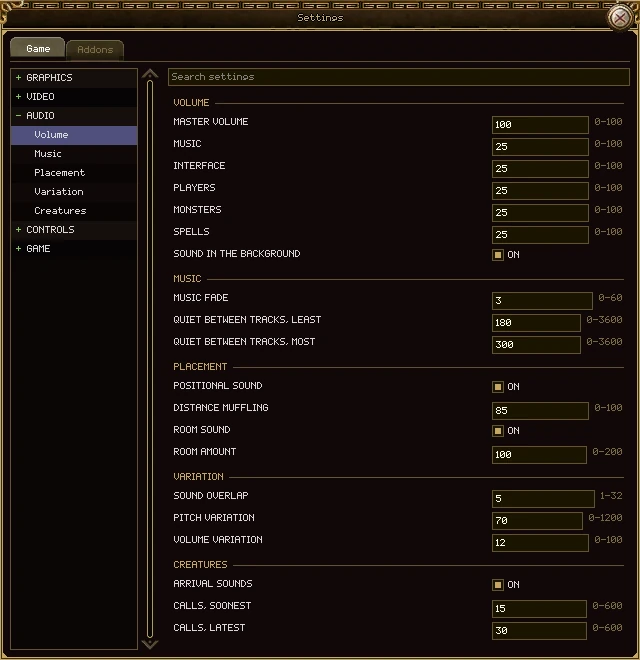
| Row | What it does |
|---|---|
| Volume | |
| Master volume | Everything, 0 to 100%. |
| Music | The maps' music. |
| Interface | Buttons, picking things up, arriving somewhere. |
| Players | Footsteps, swings, being hit. |
| Monsters | Everything monsters make. |
| Spells | From the cast to where it lands. |
| Sound in the background | Keep playing sound while another window is in front. |
| Music | |
| Music fade | Seconds a track takes to fade in and out. |
| Quiet between tracks, least / most | Each pause between tracks is picked between these two, in seconds. |
| Placement | |
| Positional sound | A sound comes from where its maker stands: quieter and duller further away, and from the side it's on. Off plays everything in the middle, as the original did. |
| Distance muffling | How much a distant sound loses its high notes. |
| Room sound | A cave echoes, a ship is close and dull, a temple rings. Off plays every sound dry. |
| Room amount | How much of the room you hear, 0 to 200. The amounts are set for headphones; laptop speakers may want more. |
| Variation | |
| Sound overlap | How many copies of one sound may play at once, 1 to 32. |
| Pitch variation | How far each sound may be detuned, in cents (100 is a semitone), so the same swing doesn't sound the same a thousand times. 0 plays every sound exactly as recorded. |
| Volume variation | How far its loudness may wander. |
| Creatures | |
| Arrival sounds | The call a creature makes when it comes into view. |
| Calls, soonest / latest | How often a creature in view calls again, in seconds. Both at 0 turns the calls off. |
Every key that opens a window or does something, and what each mouse button does. Every key can be changed.
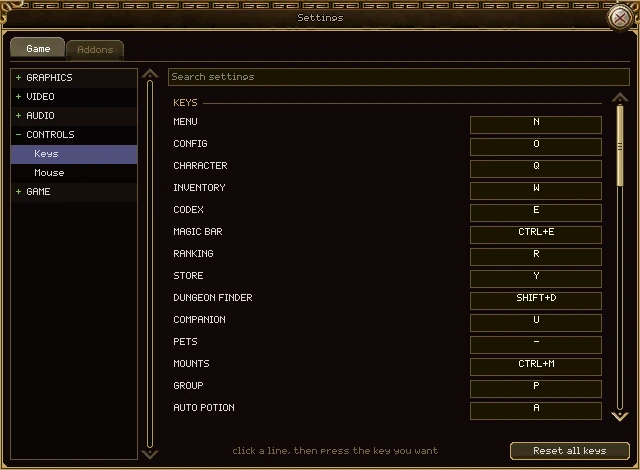
- Click the line of the action you want to change. Its box says Press a key.
- Press the key, with Ctrl, Alt or Shift if you like. Escape gives up without changing anything.
- If another action already had that key, the line at the bottom says that key also does …. Both now use it, so change the other one too.
- Reset all keys puts every key back as it started.
- Keys are saved for each character.
- The Mouse section lists what each button does. It can't be changed.
- Every key, in a table: The screen and controls → Every key.
The language, the hint line, emoticons, Escape, island downloads, your account and addon updates.
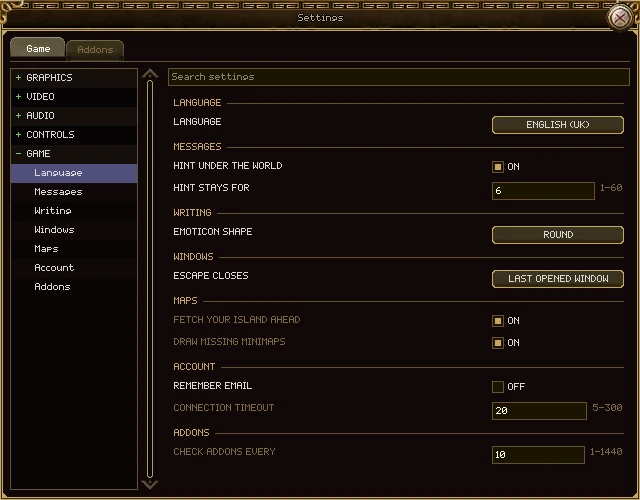
| Row | What it does |
|---|---|
| Language | |
| Language | What the game is written in. See Nine languages. |
| Messages | |
| Hint under the world | Show the line the game shows when it refuses something. Off keeps it in the chat window only. |
| Hint stays for | How many seconds that line stays before fading, 1 to 60. |
| Writing | |
| Emoticon shape | Round, Square or Squircle faces. The hands, hearts and arrows are the same whichever you pick. |
| Windows | |
| Escape closes | Last opened window: each press closes one, newest first. All windows: one press closes them all. With nothing open, Escape lets go of your target. |
| Maps | |
| Fetch your island ahead | Download your guild's island before you travel there, so the trip doesn't wait for it. Restart. |
| Draw missing minimaps | Draw a minimap for a map that has none of its own, such as an island made in the game. Restart. |
| Account | |
| Remember email | Remember your email address between sessions. Your password is never stored in a file. |
| Connection timeout | How many seconds to wait for a server before giving up, 5 to 300. Restart. |
| Addons | |
| Check addons every | How many minutes between checks for newer versions of your addons, 1 to 1440. Restart. |
Settings → Game → Language. Click the button to step through the languages; the game changes straight away, with no restart and no logging out.
| Shown as | Language |
|---|---|
| System | Whatever your computer is set to, if the game has it; otherwise English (UK). |
| English (UK) | English, as written in Britain |
| English (US) | English, as written in America |
| Español | Spanish |
| 简体中文 | Chinese (Simplified) |
| Filipino | Filipino |
| Deutsch | German |
| Français | French |
| Italiano | Italian |
| Русский | Russian |
- Each language is written in its own words, so you can always find yours, even after picking one you can't read.
- Item, monster, spell and map names change too, and so do item links in chat: everyone reads them in their own language.
- What players type stays as they typed it.
- A few lines the server had already sent stay in the old language until it sends them again.
- The launcher has a language choice of its own in its settings, and starts the game in it.
- The language belongs to the computer, not the character.
Press Alt+A, or choose Addons from the menu. Addons change and add to the interface: a damage meter, an info bar, a window for each whisper. The game comes with none; you choose your own.
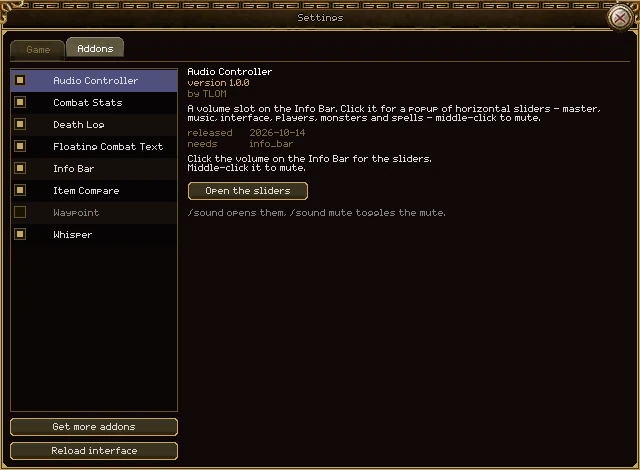
| Part | What it does |
|---|---|
| The list | Every addon you have, by name. Click a name to read about it. |
| Tick box | On or off. A change waits for a reload: the name turns yellow until then. |
| Name colours | Normal: running. Grey: switched off. Red: it failed to load. Yellow: you've changed it and haven't reloaded. A green + at the end: a newer version is out. |
| The details | Its name, version, author, description and release date; what it needs; and, if a newer version is out, an Update to … button. |
| The addon's own settings | Some addons put their options under their details, as Audio Controller does here. |
| Did not load | For a red addon, the reason it failed, in grey. |
| Get more addons | Opens the addon browser. |
| Reload interface | Restarts the interface with your changes. It says Reload to apply when something is waiting. |
Reloading
Ticking, installing, updating and removing all wait for a reload, so you can make several changes and
apply them together. A reload takes about a second: you stay logged in and stay where you are. Typing
/reload in chat does the same.
Untick it and reload. If one addon's window goes wrong, only that window closes; the rest of the game carries on.
Press Get more addons on the Addons tab. The addon browser lists every addon published on the addons page, each one checked by us before it goes up.
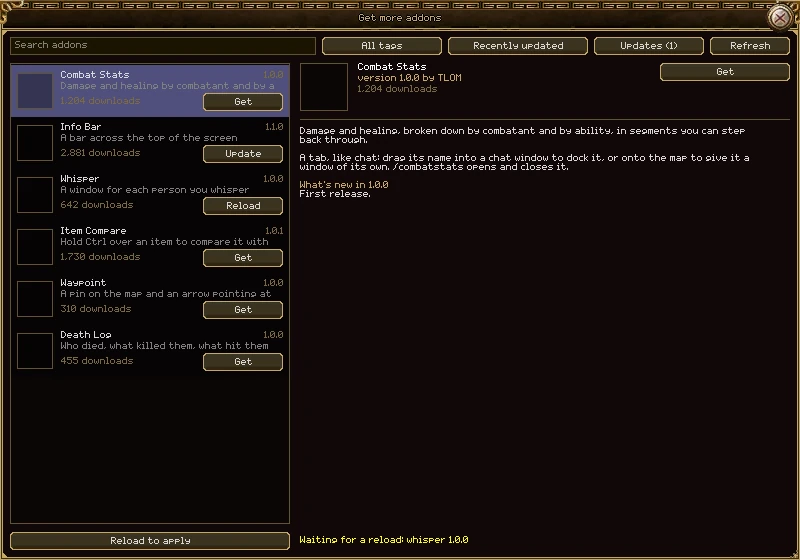
| Part | What it does |
|---|---|
| Search addons | Type and pause; the list follows. |
| All tags | Only addons of one kind, such as Bags, Chat, Combat, Interface or Maps. |
| Sort | Recently updated, Newest, Most downloaded or By name. |
| Updates (n) | Only the addons you have that have a newer version. Press again for all of them. |
| Refresh | Asks the catalogue again. |
| A row | Picture, name, version, a line about it and how many times it's been downloaded. Click it to read about it on the right. |
| The row's button | Get: install it. Update: a newer version is out. Installed: you have the latest. Replace: you have your own copy of an addon with that name. A percentage while it downloads. Reload: done, waiting for a reload. Try again: it failed, and the reason is under it. |
| The details | Its picture, name, version and author, downloads, screenshots (click one to see it full size), description, What's new in the latest version, and what it needs. |
| Get / Update to … / Remove | The same as the row's button, and Remove for an addon you have. |
| < 1 of 7 > | Pages, when there are more than fit. |
| Reload to apply | Applies what you've installed, updated or removed. The line beside it says what's waiting. |
Installing an addon
- Find it, and press Get.
- Wait for the button to say Reload. Anything it needs is installed with it.
- Press Reload to apply at the bottom. The addon is running, and is on the Addons tab.
Good to know
- Every download is checked against what the catalogue says it should be, and refused if it doesn't match.
- If you've edited an installed addon's files yourself, updating it asks first, because the update replaces your changes. The same goes for replacing an addon you put in the folder yourself.
- An addon's own settings are kept when you update or remove it, so reinstalling gets them back.
- The game checks for updates to your addons every 10 minutes (Settings → Game → Check addons every).
- The screenshot viewer: the wheel zooms, dragging moves, Fit and 1:1 reset it, < > go between pictures, and Escape goes back to the addon.
Some addons are built on another one. Audio Controller, for example, puts its volume button on the Info Bar, so it needs the Info Bar.
- The addon browser lists what an addon needs under its description: (you have it) or (also installed).
- Pressing Get installs what it needs too.
- The Addons tab shows what each addon needs. If one of those is missing or switched off, the addon can't load and shows in red with the reason.
- On the addons page, each addon's page lists what it requires, each with its own download.
If the game can't find a driver for your graphics card, your computer's processor draws the game instead, and this window says so when you arrive in the world.
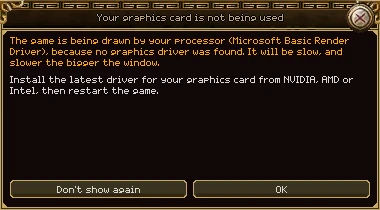
- The game still works, but slowly, and more slowly the bigger the window.
- Windows: install the latest driver for your card from NVIDIA, AMD or Intel, then restart the game.
- macOS: update macOS, then restart the game.
- Linux: install your card's Vulkan driver. On Debian or Ubuntu that's
mesa-vulkan-driversfor AMD and Intel, ornvidia-driverandnvidia-vulkan-icdfor NVIDIA.vulkaninfo --summaryshould then name your card. - OK closes it until next time. Don't show again closes it for good.
Every window in the game is written in the same simple language addons use, so an addon can do almost anything the interface does.
The addon-writing guide takes you from your first addon to windows, saved settings, commands and keys, a settings page of its own and tabs beside the chat, with examples to download. When yours is ready, you can publish it on the addons page for everyone to find in the addon browser.