The strip along the bottom of the screen is there the whole time you play. It can't be moved or closed. On the left are your bars, in the middle eight numbers about your character, and on the right a row of buttons.

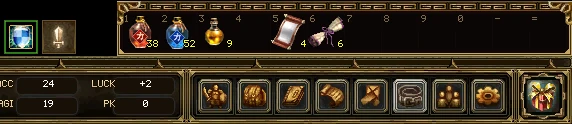
The bars
| Part | What it does |
|---|---|
| Experience | The thin bar across the top edge: how far you are through your level. Point at it for the exact figures. |
| HP | Health, now and at most. At zero you fall. |
| MP | Mana, which spells spend. |
| IP | Fills while you hunt. When it is full you receive a blessing, and sometimes so do other players; point at it to see the community meter. It glows on and off while it is full. See Skills and the Codex. Blessings are new and still being tested. |
The eight numbers
Four columns of two. Point at any of them to see its full name.
| Column | What it shows |
|---|---|
| CL, LV | Your class and level. Always these two. |
| Your attack | The stat your class hits with: DC for a warrior or an assassin, MC for a wizard, SC for a taoist. Always shown. |
| AC or MAC | Under the attack: armour, or magic resistance. Click it to swap between the two. |
| The last four | Your choice. They start as accuracy (ACC), agility (AGI), luck and PK points. Click one for a menu of other stats to show there instead: critical chance, attack speed, block, evasion, bag weight, experience, drop and gold rates and more. Back to the default puts it back. |
| The word under them | Your attack mode, in green when you can hurt no player, gold or red when you can. See Attack and pet modes. |
The buttons
| Button | Opens | Key |
|---|---|---|
| Character | Your character window | Q |
| Inventory | The bag | W |
| Codex | Your skills | E |
| Quest log | Your quests | J |
| Mail box | Your letters. A red number shows how many are unread (9+ for more). | , |
| Belt | Shows or hides the belt | Z |
| Group | Your group | P |
| Menu | The menu | N |
| Store (the big one) | The game store, a tab of the market. See Trade, market and mail. | Y |
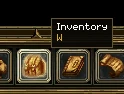
A button is lit while its window is open, so you can see at a glance what you already have up.
Twelve slots on the right-hand shoulder of the bottom panel, pressed with the keys 1 to 0, then - and =. Each slot's key is written in its corner. Z shows or hides it.
A slot holds a kind of thing, not one particular item. Put a healing potion on slot 1 and slot 1 drinks a healing potion from your bag every time, whichever stack it comes from. The number under it is how many you have left. The items stay in your bag the whole time.
| To | Do this |
|---|---|
| Fill a slot | Pick an item up from the bag and click it onto the slot. |
| Use it | Press its key, right-click it, or double-click it. One click on its own does nothing, so a double-click never uses two. |
| Empty a slot | Shift and right-click it. |
When you run out, the slot keeps a faint picture of the item with a 0 on it, so you can tell "I've none left" from "nothing is here". Buy more and it fills again by itself.
A bar of spell slots across the top left of the screen. It is closed until you ask for it with Ctrl+E, but its keys work whether it is showing or not.
- Two rows of twelve. F1 to F12 cast the first row. The second row has no keys until you give it some, and is shown with the small arrow at the right-hand end.
- Four whole sets of spells. The number at the end says which set is showing; its arrows change set, and so do Ctrl+F1 to Ctrl+F4. The F keys cast from the set that is showing.
- Drag a spell from the Codex (E) onto a slot to put it there.
Everything about learning spells and putting them on the bar is in Skills and the Codex.
A row of small pictures near the top left: everything that is helping you right now, with how long each has left under it. What is wrong with you, a poison or a paralysis, goes on a row of its own beneath.
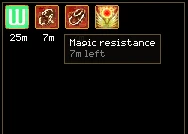
- A buff with no clock lasts until something ends it (a guild's buff, a toggle).
- An icon flickers blue in its last 10 seconds, so you know to cast it again.
- A dimmed icon with a pause mark has stopped counting down for now.
- Drag the bar anywhere. Pull its edges to make it a strip, a column or a block: the icons flow into whatever shape you give it.
What each buff does is in Skills and the Codex.
Two small icons sit just above the bottom panel. The first is your attack mode: whom your blows can land on. The second, shown only while you have pets, is what your pets do.
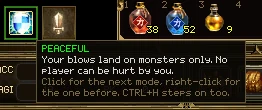
- Click an icon for the next mode, right-click it for the one before.
- Ctrl+H steps the attack mode on; Ctrl+A steps the pet mode.
- Each icon's edge is the mode's colour: green when nobody is at risk, gold in between, red when you can hurt players who didn't ask for it.
| Attack mode | Your blows can land on |
|---|---|
| Peaceful | Monsters only. |
| Not my group | Any player who isn't in your group. |
| Not my guild | Any player who isn't in your guild. |
| War only | Players your guild is at war with, and players whose names are red or brown. |
| Everyone | Every player, your group and guild included. |
| Pet mode | Your pets |
|---|---|
| Free | Follow you and fight what you fight. |
| Heel | Follow you and don't fight. |
| Hold | Fight, but stay where they are. |
| PvP | Follow you and hunt players only, leaving monsters alone. |
| Off | Stand where they are and don't fight. |
What happens when you hit another player is in Combat, PK and death; taming and keeping pets is in Companions, pets, mounts.
When a piece of what you're wearing is close to breaking, a small red picture of it appears at the top of the screen. It isn't there at all until something is worn down, and it goes again once the smith has mended it.
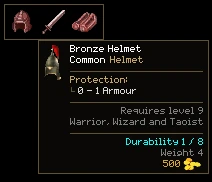
- A picture shows when a piece has less than 2 durability left: helmet, necklace, armour, weapon, shield, bracelets, rings or shoes, roughly head to foot.
- A piece that is completely broken pulses. A broken item does nothing until it is repaired.
- Point at a picture for that item's tooltip.
- Drag the strip anywhere. Alt+D turns the warning off and on, and says which.
Repairs are in Upgrading, crafting, mining.
Press N or the menu button on the bottom panel. It reaches everything that has no button of its own.
| Button | Opens |
|---|---|
| Settings | How the game looks, sounds and is played (O). See Settings and addons. |
| Guild | Your guild (G). See Guilds. |
| Friends | Who is online, and what they are told about you. |
| Ignore list | People whose messages never reach you (F). |
| Menagerie | Companions, horses and a wizard's tamed pets (U). |
| Storage | What is kept for you in town (S). Items go in and come out only in town. |
| Market | Buy from and sell to other players (Ctrl+S). |
| Experience Pot | Bank experience, and buy scrolls with it. |
| Crafting | Make things from what you are carrying. |
| Ranking | Where your character stands against the rest (R). |
| Addons | The interface add-ons this game has loaded (Alt+A). |
| Leave | Back to the character list, or out of the game. See Leaving the game. |
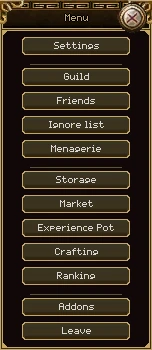
Point at a button for what it does and its key, if it has one.
When the server refuses something you tried, it says why in one orange line just above the belt. A few other words appear on the screen too, each only while it matters.

The hint line
- It stays readable for 6 seconds, then fades. Settings has Hint stays for (1 to 60 seconds) and Hint under the world, which turns it off. The same sentence always goes into the chat log as well, so nothing is lost.
- With the pointer on it, it stays put and gains a frame you can drag, to put the line somewhere else.
Words that come and go
| You see | It means |
|---|---|
| item - TAB, OR CLICK YOUR FEET | Low in the middle of the screen: something is lying where you stand. Hold Tab or click your own feet to pick it up. item - TAB means it is within your reach, but not underfoot. |
| Names over the floor | While you hold Tab, every drop nearby is named, in the colour of its quality; "(+2)" means two more are under it. Name loot on the ground in Settings names them all the time. |
| RUNNING | On the left: auto-run is on. |
| NOT TRADING | On the left: you've turned trade requests off with Ctrl+T. Nobody can ask you to trade until you turn them on again. |
| A land's name at the top | Whose land you're on, or that a war is being fought for it. In a war it is red, with a warning that anybody in another guild may attack you. See Wars and conquest. |
| A blue square on the ground | You typed /range 9 in chat: every cell within 9 of you is
marked, so you can see how far a spell or a monster's notice reaches. /range clear takes it away.
Up to 60 cells. |
These are the keys out of the box. You can change any of them in Settings (O) on the Controls page: click a row, then press the key you want. Escape cancels. If the key is already used, the page tells you what else it does.
A key with no Ctrl, Alt or Shift doesn't fire while one of them is held, and no key fires while you're typing in a box.
Windows
| Opens or closes | Key |
|---|---|
| Menu | N |
| Settings | O |
| Character | Q |
| Bag (inventory) | W |
| Codex (your skills) | E |
| Spell bar | Ctrl+E |
| Rankings | R |
| Game store | Y |
| Menagerie on its Companions tab | U |
| Menagerie on its Mounts tab (the stable) | Ctrl+M |
| Menagerie on its Pets tab | No key until you give it one |
| Group | P |
| Auto potion | A |
| Storage | S |
| Market | Ctrl+S |
| Marriage | Alt+M |
| Ignore list | F |
| Guild | G |
| Quest log | J |
| Quest tracker | L |
| Belt | Z |
| Minimap | V |
| Big map | B |
| Mail box | , (comma) |
| Write a letter | . (full stop) |
| Chat options | Ctrl+O |
| Addons | Alt+A |
| Worn-out warning, on and off | Alt+D |
Doing things
| Does | Key |
|---|---|
| Next attack mode | Ctrl+H |
| Next pet mode | Ctrl+A |
| Invite your target (or whoever is under the pointer) to your group | Ctrl+G |
| Ask the player under the pointer to trade | T |
| Allow or refuse trade requests | Ctrl+T |
| Get on or off your horse | M |
| Call out your default companion, or send back the one that is out | Ctrl+U |
| Swing your pickaxe at the wall you face (hold it) | X |
| Auto-run on and off | D |
| Next chat channel | K |
| The emoticon picker, while typing in chat | Ctrl+. |
Spells and the belt
| Does | Key |
|---|---|
| Cast the spell in that slot of the spell bar's first row | F1 to F12 |
| Show spell set 1, 2, 3 or 4 | Ctrl+F1 to Ctrl+F4 |
| Use belt slot 1 to 12 | 1 to 0, -, = |
Keys that can't be changed
| Key | Does |
|---|---|
| Arrow keys | Walk. |
| Shift (held) | Stand still and swing where the pointer is (with the left button). |
| Tab (held) | Pick up what is near you, one thing at a time, and name everything on the floor. |
| Ctrl (held over a cell) | Opens the pile lying there, with every item's tooltip. See Items and the bag. |
| Alt (held) | Aim at the square under the pointer rather than what's drawn on it (see the mouse). |
| Enter | Opens the chat line; Enter again sends. |
| / | Opens the chat line with a slash already in it, for a command. |
| Escape | Closes the window you opened last, then the one before it, one per press. With no windows open it lets go of your target. Settings' Escape closes can make one press close every window instead. |
The mouse buttons can't be rebound. This is all of them.
| Button | Does |
|---|---|
| Left button | Walk towards the pointer, attack the creature it is on, or talk to whoever it is on. Hold it to keep walking. Held against a rock wall, it mines. Click your own feet to pick up what you're standing on. |
| Right button | Run, once you are already walking. Or pick out the creature it is on. |
| Shift + left | Stand still and swing where you're pointing. |
| Alt | Aim at the square under the pointer, not at what's drawn on it. |
| Alt + left, held | Skin the body you're pointing at. |
| Alt + wheel | Magnify the world: 1×, 2×, 4× or 8×. |
The pointer picks a creature by its picture. In a crowd, somebody standing in front of your target is drawn over it, so you click them instead. Hold Alt and the game asks which square you mean rather than which picture.
The left button only ever walks. The right button runs, but only once you're already moving: the first step from standing is always a walk.
Auto-run (D)
Press D and your character runs towards the pointer with no button held, even while the pointer is over a window. RUNNING shows on the left of the screen while it is on. It stops when:
- you press D again;
- you click either button on the world;
- you die;
- you set off for a point on the map (a right-click on the big map, for one).
It is never remembered: every time you enter the world, you start standing still.
Going over your bag's weight limit slows your steps as well as your attacks and spells. See the bag.
Almost everything on the screen is a window you can move: the bag, the minimap, the belt, the spell bar, the buff bar, the chat windows, the quest tracker. Only the bottom panel stays where it is.
- Move: drag a window by its title bar. The belt has no title, so take it by its top edge; the buff bar and the worn-out warning are dragged by any part of them. The two mode icons stay where they are, because a click on them changes the mode.
- Bring to front: click it.
- Resize: some windows can be resized: the bag, storage, the minimap and big map, the quest log, the guild window, the chat windows and the buff bar. Pull any edge or corner; the bottom-right corner has a grip to show it.
- Close: the button in its top-right corner, its key, or Escape.
Every window opens where you last left it.
Windows can be stuck to an edge of the screen, or to each other, so they stay together when the game window changes size or when you move one of them.
To an edge of the screen
- Drag a window towards an edge. Within 12 pixels it snaps flush against it, and that edge of the screen glows. In a corner, both edges glow.
- Let go while it glows. The window is now anchored to that edge.
When you change the size of the game window, an anchored window stays against its edge: a bag anchored to the right stays on the right. If the window itself grows, it grows away from its edge. To un-anchor it, drag it away from the edge and let go.
With a gap
- Drag the window against the edge until the edge glows.
- Hold Alt and keep dragging away from the edge. The edge keeps glowing, and a line with a number shows the gap in pixels, so you can set two windows the same distance in.
- Let go of the mouse with Alt still held. The window keeps that gap from the edge from then on.
Let go of Alt first and the edge is released too. You can press Alt before or after reaching the edge. On Linux, take hold of the window first and then press Alt: on many Linux desktops Alt held before the click moves the whole game window instead.
To another window (docking)
- Drag a window against the side of another one, such as the bag against the character window's right side. It snaps flush, lines up with the other's top or bottom when close, and the other window's side glows.
- Let go and it is docked: it follows the other window when that one is dragged, anchored or resized.
- Alt holds a gap here too: dock the bag 10 pixels to the right of the character window.
- The bottom panel can be docked to as well.
- If the other window closes, the docked one stays put; when it opens again, they're back together.
- To undock, drag the docked window away and let go.
- Chains work: A docked to B docked to C, and dragging C carries both.
Each of your characters keeps its own screen: where every window is, which HUD pieces are open, its key bindings, and most of its settings.
- Your taoist can keep the group window open on the left while your warrior keeps the bag there instead.
- A brand new character starts with a copy of the last character's layout, keys and settings, so you don't set everything up again.
- Settings that are a matter of taste (sound volumes, shadows, names on the ground, the hint line, what Escape closes) are saved for each character. Settings that are about the computer (the whole Video page, the interface scale, the language) are shared by every character on it. A setting's tooltip says which kind it is: saved for this character or shared by every character on this computer.
- All of it is kept on your computer, not on the server, so a different computer starts fresh.